
“Computers are like onions…” is one of my favorite sayings (stolen from Shrek’s “Ogres are like onions” bit). Why? Because A. they often make you cry and B. they require a layered approach for security. Sure, it’d be awesome to completely lock down a system and make it completely secure, but that involves unplugging it from the network and never powering it up. I tend to make smaller layered approaches with my security settings.
This week a couple of articles came out talking about the upcoming security breaches that are expected due to users having Java installed on their systems. See ‘Unprecedented wave’ of Java exploits hits users, says Microsoft article on Computerworld. Most people will ignore the threat, some may get over-zealous and outright uninstall the Java VM from their boxes, but I chose to just the middle ground. I decided to uncheck the “Enabled” checkbox in the Java settings to temporarily disable Java. This should stop any exploits in their tracks, but still leave Java installed should I need it for any particular purposes.
It’s straight forward to do. Just fire up Control Panel and select the Java (32-bit) selection, then pick the “Java” tab, click on “View” and deselect the “Enabled” checkbox and say OK. Screenshot below.
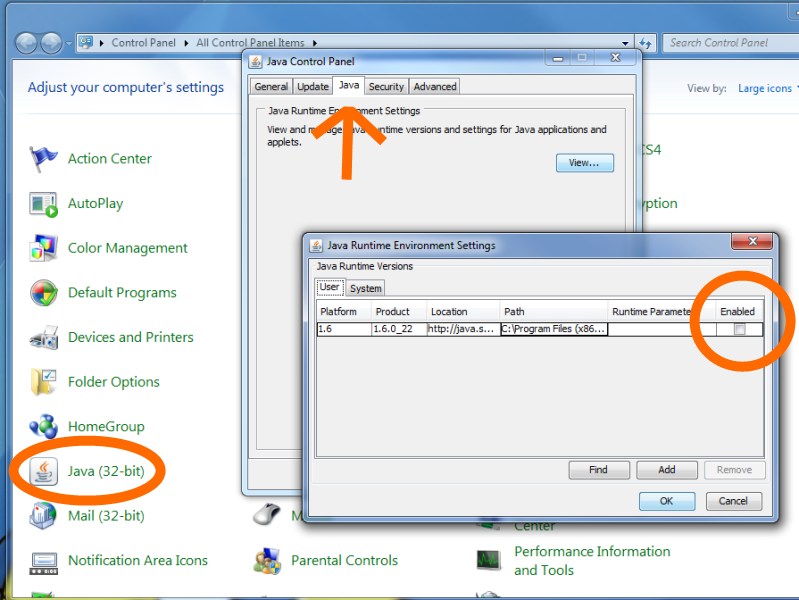
If I run into a situation where I need Java, it’s simple enough to just re-Enable Java via the Control Panel.
The one question that pops into mind is whether Java is able to check for updates when this is disabled. If you know, please leave a comment as I’d like to know. Until I’m sure, I imagine I’ll be sure to go to the “Update” tab and click the “Update Now” button on Java before I’d re-Enable it.
I’m thinking this will protect me from the mean old Java bandits. If there’s a flaw in my logic, please be sure to let me know.
 CPU Guru